2D points 3D Objects 3D Points Boundary Cursor position Data for selected object Domain Expansion Field Field components Field formula Field tubes Function Generate expansions along 2D boundary Generate expansions for 3D objects Grid formula Grid transformation Info and movie directives Insert Integral Modify 2D expansions MMP Movie Open GL window PET basis PFD (predefined FD) Project Space, plane, arrow, or point Tools and draw Transformation data Window
This dialog is permanently on the screen while OpenMaXwell is running.
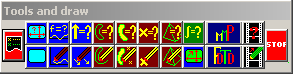
The Tools and draw dialog is a modal dialog that should always be visible. It contains several buttons that are shortcuts to tools and draw commands that are also accessible from the Tools and Draw menus respectively. In addition, there is a Stop button, that allows you to stop a running process. Note that there are no buttons for rarely used items in the Tools and Draw menus.
 project button
The project button is equivalent to selecting Project… from the Tools menu.
 window button
The window button is equivalent to selecting Window… from the Tools menu.
 draw window button
The draw window button is similar to selecting Window… from the Draw menu. OpenMaXwell will immediately draw the expansions with the current settings in the current graphics window without asking you any questions.
 OpenGL window button
The OpenGL window button is equivalent to selecting OpenGL… from the Tools menu.
 function button
The function button is equivalent to selecting Function… from the Tools menu.
 draw function button
The draw function button is similar to selecting Function… from the Draw menu. OpenMaXwell will immediately draw the expansions with the current settings in the current graphics window without asking you any questions.
 field button
The field button is equivalent to selecting Field… from the Tools menu.
 draw field button
The draw field button is similar to selecting Field… from the Draw menu. OpenMaXwell will immediately draw the expansions with the current settings in the current graphics window without asking you any questions.
 boundary button
The boundary button is equivalent to selecting Boundaries… from the Tools menu.
 draw boundary button
The draw boundary button is similar to selecting Boundaries… from the Draw menu. OpenMaXwell will immediately draw the expansions with the current settings in the current graphics window without asking you any questions.
 domain button
The domain button is equivalent to selecting Domain… from the Tools menu.
draw domain buttonThe draw domain button is similar to selecting Domain… from the Draw menu. OpenMaXwell will immediately draw the expansions with the current settings in the current graphics window without asking you any questions.
 expansion button
The expansion button is equivalent to selecting Expansions… from the Tools menu.
 draw expansion button
The draw expansion button is similar to selecting Expansions… from the Draw menu. OpenMaXwell will immediately draw the expansions with the current settings in the current graphics window without asking you any questions.
 3D object button (MAXaax.EXE only)
The 3D objects button is equivalent to selecting 3D Objects… from the Tools menu.
 draw 3D objects button (MAXaax.EXE only)
The draw 3D objects button is similar to selecting 3D objects… from the Draw menu. OpenMaXwell will immediately draw the expansions with the current settings in the current graphics window without asking you any questions.
 integral button
The integral button is equivalent to selecting Integral… from the Tools menu.
 MMP button
The MMP button is equivalent to selecting MMP… from the Tools menu.
 PFD-FDTD button
The PFD button is equivalent to selecting FDTD… from the Tools menu.
 movie button
The movie button is equivalent to selecting Movie… from the Tools menu.
 generate movie button
The generate movie button is equivalent to pressing the Generate movie !! button in the Movie dialog. OpenMaXwell will immediately start generating a movie.
 stop button
The stop button allows you to stop a running OpenMaXwell process. Note that this does not work in some cases, especially when you generate a movie in the OpenGL window.
Responsible for this web page: Ch. Hafner, Computational Optics Group, IEF, ETH, 8092 Zurich, Switzerland
Last update
17.02.2014