 or
select Domain... from the Tools menu to
open this dialog.
or
select Domain... from the Tools menu to
open this dialog.2D points 3D Objects 3D Points Boundary Cursor position Data for selected object Domain Expansion Field Field components Field formula Field tubes Function Generate expansions along 2D boundary Generate expansions for 3D objects Grid formula Grid transformation Info and movie directives Insert Integral Modify 2D expansions MMP Movie Open GL window PET basis PFD (predefined FD) Project Space, plane, arrow, or point Tools and draw Transformation data Window
Press the domain button or
select Domain... from the Tools menu to
open this dialog.
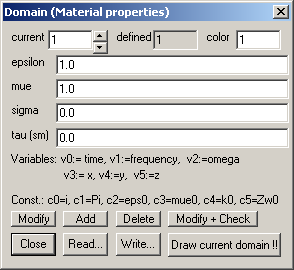
The Domain dialog displays the domain data and allows you to edit or modify this data. An OpenMaXwell domain is a bounded area filled with isotropic material, characterized by four formulae for the permittivity epsilon, the permeability mue, the electric conductivity sigma, and the magnetic conductivity tau. These formulae can be time or frequency dependent if you are working in the time or frequency domain respectively. During GFD and MMP computations, the formulae are evaluated and the resulting scalar values are used. In the time-harmonic case, these constants may be complex. Therefore, the formulae are assumed to be complex in general.
Note that sigma and tau are ignored in the MMP tools of OpenMaXwell because the complex definitions of epsilon and mue already contain the conductivities in the imaginary parts. Instead of giving a real number, a complex number, or a formula, you may also provide a filename to specify the these values. The filename must be preceded by the character #. The corresponding file should be an ASCII file that contains the corresponding frequency- or wavelength dependence as a list. Whether the frequency- or the wavelength-dependence is specified depends on the file extension. The following extensions are recognized: file.FR1, file.FR2 (for frequency dependence), file.OM1, file.OM2 (for omega dependence, i.e., angular frequency values), file.WL1, file.WL2 (for wavelength dependence). Note that the third character of the extension may be either 1 or 2. 1 indicates that the material property is real and therefore specified in 1 column, whereas 2 specifies that material property is complex and therefore specified in 2 columns - the column 1 for the real part and column 2 for the imaginary part. Column 0 always contains the frequency, omega, or the wavelength - depending on the first two characters of the extension. Since it may be convenient to provide, for example, the wavelength in nm in column 0, the first line in the file that describes the material property is a scaling factor, e.g., 1.0e-9 when nm are used. Thus, a typical file for the complex permittivity may be named as epsilonAg.wl2 and it might start as follows:
1.0e-9 ! wavelength scaling: nm
206.8390325 -0.34600 2.86200 ! wavelength in nm, real part of epsilon, imaginary
part of epsilon
207.5303388 -0.34001 2.87797
208.2259319 -0.33402 2.89495
208.9265556 -0.32803 2.91192
209.6315556 -0.32304 2.92888
210.3416865 -0.31705 2.94585
211.0566449 -0.31106 2.96282
Note that you specify #epsilonAg.wl2 in the epsilon box when you wish that OpenMaXwell reads the data from this file. In order to obtain values between those specified in the list, OpenMaXwell uses linear interpolation. If a value outside the the range specified in the file is required, no interpolation is done. For example, when when you have specified the file given above and ask OpenMaXwell to compute the field for 100nm wavelength (which is <206.8390325, i.e., the first value specified in the file), the first value in the list will be used.
Whether sigma and tau values are used or not in analytic field definitions and in PFD (FDTD etc.) transformations, depends on the corresponding update scheme. In the current PFD-FDTD implementation, these values are used as follows: For standard materials with losses, epsilon, mue, sigma, and tau are real and positive. Note that these FD schemes are only stable for epsilon and mue >=1. When epsilon or mue <1, the material must be dispersive.
For dispersive materials, time domain solvers use various Drude-Lorentz models. For the MMP solver, arbitrary dispersive materials are described by a formula for epsilon or mue. The following formulas are available abbreviations for simple dispersive materials (Note that the last character defines the variable to be used: f stands fro frequency, o for omega, w for wavelength!):
lmf, lmo, lmw (lossy material: epsilonC=epsilonR+i*sigma/(epsilon0*omega) corresponds to the formula dro(omega,epsilon0,epsilonR,sigma))
drf, dro, drw (extended Drude: epsilonC=epsilonD-omegaD*omegaD/(omega*(omega+i*gammaD)) corresponds to the formula dro(omega,epsilonD,omegaD,gammaD))
dsf, dso, dsw (extended Drude + loss term: epsilonC=epsilonD-omegaD*omegaD/(omega*(omega+i*gammaD))+i*sigma/(epsilon0*omega) corresponds to the formula dso(omega,epsilon0,epsilonD,omegaD,gammaD,sigma))
dlf, dlo, dlw (extended Drude+Lorentz: epsilonC=epsilonD-omegaD*omegaD/(omega*(omega+i*gammaD))-epsilonL*omegaL*omegaL/(omega*omega-omegaL*omegaL+2*i*omega*omegaL*gammaL) corresponds to the formula dlo(omega,epsilonD,omegaD,gammaD,epsilonL,omegaL,gammaL))
See formula interpreter for details. The PFD-FDTD solver contains appropriate material models for these simple dispersive materials but not for arbitrary dispersive materials described by an arbitrary formula or even by an ASCII file.
Only one domain’s data is displayed and available to be edited in the Domain dialog at a time. To select a domain, select the domains identifier in the Current box.
To make changes in the edit boxes effective, press the Modify button or the Modify+Check button.
When you press the Modify+Check button OpenMaXwell checks the formulae of all domains. It will put an exclamation mark in front of any formula that it detects an error.
Press the Add button to copy the current domain. OpenMaXwell will add a domain with the data specified in the epsilon, mue, and sigma boxes.
Press the Delete button to delete the current domain. Note that there is no way to recover data once a domain has been deleted, except if you have saved the domain data explicitly. OpenMaXwell requires at least one domain to be present, and therefore prevents, you from deleting the current domain if only one domain is defined.
Press the Read… button to read domain data from a file. A file name dialog will allow you to select any file name to read the data from. Note that all current domains will be overwritten.
Press the Write… button to write domain data to a file. A file name dialog will allow you to select any file name to save the data to.
Sometimes it is desirable to see the boundaries of the current domain only in a graphics window. Clear the window and press the Draw current domain!! Button. Note that this will automatically close the dialog.
Press the Close button to close the dialog. Note that any changes made to the domain data will be lost unless the Modify button was pressed to accept the changes.
Responsible for this web page: Ch. Hafner, Computational Optics Group, IEF, ETH, 8092 Zurich, Switzerland
Last update
17.02.2014