 or
select Movie... from the Tools menu to
open this dialog.
or
select Movie... from the Tools menu to
open this dialog.2D points 3D Objects 3D Points Boundary Cursor position Data for selected object Domain Expansion Field Field components Field formula Field tubes Function Generate expansions along 2D boundary Generate expansions for 3D objects Grid formula Grid transformation Info and movie directives Insert Integral Modify 2D expansions MMP Movie Open GL window PET basis PFD (predefined FD) Project Space, plane, arrow, or point Tools and draw Transformation data Window
Press the movie button
or
select Movie... from the Tools menu to
open this dialog.
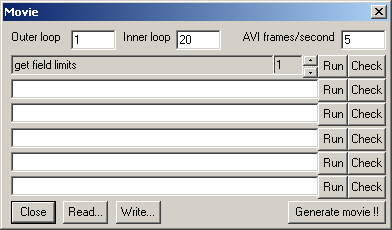
To generate a movie, you need to define the movie directives in the Info and movie directives dialog. Moreover, you need to specify the number of frames per second that will be displayed when you run a movie with an AVI player. The Movie dialog allows you to specify this data, and to run each movie directive separately.
Until 2015, OpenMaXwell provided 2 nested loops for computing movies. You could set the number of cycles for the Outer loop and the Inner loop in the corresponding boxes. These boxes became obsolete since LOOp and other directives provide a much more flexible handling with arbitrarily many loops.
Note that "Movie directives" are also useful when you do not intend to create a movie, e.g., for the automatization of various tasks.
OpenMaXwell generates AVI movies, except when the corresponding directives are missing in the list of movie directives. The header of an AVI file contains some information about the movie that is used by the AVI player. Most important is the number of frames per second to be displayed by the player. You can specify this number in the AVI frames/second box.
Unfortunately, the optimum number of frames per second depends on the contents of the animation, the size of the frames, the speed of the device where the AVI file is stored, and on many other things. Therefore, you may want to specify the number of frames per second when you watch the movie and not when you generate it. Note that you can do this, for example, with Microsoft’s VidEdit. This tool is available for free on the World Wide Web. It also contains compression utilities that allow you to save memory, which is important because movies can be extremely memory consuming.
Use the little scroll bar for selecting a directive to check or run. The directive will be displayed to the right and its number to the left of the scroll bar.
When you press the Check button, OpenMaXwell will perform some simple checks on the syntax of the directive displayed in the corresponding box. If an error is detected, a warning will be displayed. Moreover, the number of the directive will be increased by one.
Instead of just checking the syntax, you can also ask OpenMaXwell to Run the command specified by the current directive. This allows you to verify whether a directive does what you expect it to do.
You my wish to check or run an arbitrary directive that is not contained in the Info and movie directives dialog. For doing this, five lines are present where you may specify arbitrary directives. This is not only helpful for checking directives before you insert them in the Info and movie directives dialog but also for performing various tasks by running appropriate directives.
The Run button runs only a single command, whereas Generate movie !! runs all the commands and also the movie loops. Note that the exclamation marks on the button indicate that the dialog will close as soon as you press it.
Press the Read… button to read movie data from a file. A file name dialog will allow you to select a file to read from.
Press the Write… button to write movie data to a file. A file name dialog will allow you to select the file to write to.
Press the Close button to close the dialog. Note that the data in the dialog becomes effective once the dialog is closed.
Responsible for this web page: Ch. Hafner, Computational Optics Group, IEF, ETH, 8092 Zurich, Switzerland
Last update
28.10.2015