OpenMaXwell Reference Manual
2D points
3D Objects
3D Points Boundary
Cursor
position Data for selected object
Domain
Expansion Field
Field components
Field formula
Field tubes
Function
Generate expansions along 2D boundary
Generate expansions for 3D objects
Grid formula
Grid transformation
Info and movie directives
Insert
Integral Modify 2D expansions
MMP Movie
Open GL window
PET basis
PFD (predefined FD) Project
Space, plane, arrow, or point
Tools and draw
Transformation data
Window
3D objects dialog
Select
3D Objects…
from the
Tools menu or press the  button
in the
Tools and draw menu to open this dialog. It
allows you to define how OpenMaXwell shall generate 3D objects from a set of 2D
boundaries and 2D multipoles. Moreover, you can define parameters for the
graphic representation of 3D objects in the
Graphic representation
group of this dialog.
button
in the
Tools and draw menu to open this dialog. It
allows you to define how OpenMaXwell shall generate 3D objects from a set of 2D
boundaries and 2D multipoles. Moreover, you can define parameters for the
graphic representation of 3D objects in the
Graphic representation
group of this dialog.
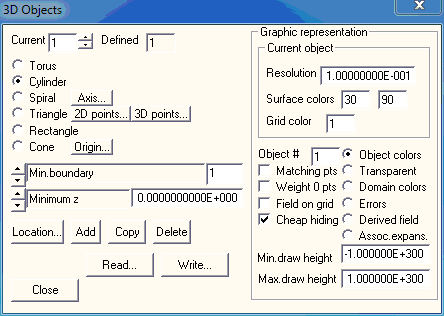
3D object data
The
3D Objects
dialog displays the data of 3D objects and allows you to edit or modify this
data. Currently, all 3D objects require the definition of 2D boundaries or 2D
expansions. Only some data of these 2D objects may be required for the
construction of a 3D object. The corresponding 2D objects will not be used for
the 3D MMP modeling. Moreover, one and the same 2D object may be used for the
construction of several 3D objects. The most important 3D objects are generated
by analytic transformations that correspond to the type of the 3D object. The
following transformations have been implemented:
Torus:
Rotation around the y axis of the global coordinate system.
Cylinder:
Translation along the z axis of the global coordinate system.
Spiral:
Transformation consisting of A) rotation around the given axis, B) translation
along the given axis and C) translation perpendicular to the given axis. To
specify the axis required by these transformations, press the
Axis…
button.
In addition to that, you may select
two simple types of 3D objects that require no definition of a transformation,
namely:
Triangle:
A triangle with corners A, B, C in 3D space. The coordinates of the corners may
be specified in the
3D points
dialog that pops up when you press the
3D points…
button. Sometimes, it is more convenient to define the corners in the xy plane
and to define its position in 3D space as for arbitrary 3D objects (see
Location…
button below). The 2D coordinates of the corners in the xy plane may be
specified in the
2D points
dialog that pops up when you press the
2D points…
button.
Rectangle:
A rectangle with side length a and b. For the default location (see
Location…
button below), the rectangle will be in the xy plane and its corners will be at
(0,0,0), (a,0,0), (a,b,0), (0,b,0). The side length a and b are defined in the
boxes below the
boxes where you select the 3D object type.
Cone:
Move towards the origin (a point in 3D space that is specified when you click
the Origin... button).
Additional data for the 3D object is
defined in the boxes below the
boxes where you select the 3D object type.
You must specify the following integer data:
Torus,
Cylinder,
Spiral,
Cone:
a) The 2D boundary or 2D expansion numbers used for generating 3D objects are
specified in the
Min.boundary,
Max.boundary,
Min.expansion,
Max.expansion boxes. Note that you can use more
that one 2D boundary or more than one 2D expansion for defining a 3D object, but
these boundaries and expansions must have successive numbers because you only
can specify minimum and maximum numbers. During 3D MMP computations, the 2D
boundaries and 2D expansions used for generating 3D objects will be ignored.
Important note: All 2D expansions belonging to a 3D object should be 2D
multipoles. b) The
Max.multipoles
box specifies how many multipoles shall be generated for the 3D object. OpenMaXwell
can either generate a discrete set of standard 3D multipole expansions for each
2D multipole expansion that belongs to a 3D object or it can generate a single
distributed multipole for each 2D multipole. In the
Max.multipoles
box you may enter the number of standard multipoles that shall be generated for
each 2D multipole. These multipoles will be placed on a curved line along the
boundary of the 3D object. When you enter a negative number –N in the
Max.multipoles
box, up to N multipoles will be generated. In this case, less the N multipoles
may be created when the corresponding 2D multipole is sufficiently far away from
the boundary. If some of the 2D multipoles that belong to the object are close
to the boundary and others are further away, it is strongly recommended to
define a negative number –N in the
Max.multipoles
box. In most cases, it is reasonable to generate distributed multipole
expansions. For obtaining such expansions, enter 0 in the
Max.multipoles
box. The appropriate distributed expansions for a torus, cylinder, and spiral
are 3D ring multipole , 3D line multipole, and 3D spiral multipole respectively.
Distributed multipoles have a singularity along a curved line. They consist of a
superposition of infinitely many 3D standard multipoles placed on the curved
line. Since an accurate numeric integration of the 3D standard multipoles would
be time-consuming, distributed multipoles are approximated by a discrete set of
3D standard multipoles that are uniformly distribute along the curved line. Note
that the data for generating 3D expansions contained in the
3D Objects
dialog are used when you decide to generate the 3D multipole expansions for a 3D
object. For doing this, press the
3D object…
button in the
Expansion
dialog and press the
Generate !!
button in the dialog that will pop up. Instead of this, you can also run the
movie command GENerate 3DExpansions. For more information, see
Expansion
dialog and the description of the GENerate command.
Triangle,
Rectangle:
a) OpenMaXwell generates a set of 3D matching points on the triangle or rectangle. For
these matching points, the domain numbers on both sides and other data such as
the boundary conditions to be imposed are required. Instead of providing the
information directly in the
3D Objects
dialog, you must define it in the
Boundary
dialog. The corresponding 2D boundary may be used for defining several 3D
objects. In the
Use data of boundary
box you specify the number of this boundary. Note that this may be a dummy
boundary that does not affect the MMP computation. b) OpenMaXwell can generate
multipole expansions for the
Triangle
or
Rectangle. In the
Max. multipoles per side
box you specify how many multipoles OpenMaXwell shall try to generate on each side of
the 3D object and in the
Max. multipole order and degree
box you specify the maximum order and degree of these multipoles. Note that
OpenMaXwell will reduce the maximum order and degree to a reasonable number when not
enough matching points are present on the 3D object. Moreover, OpenMaXwell can even
entirely delete a multipole when not enough matching points are present on the
3D object. For a
Rectangle,
OpenMaXwell can generate line multipoles instead of discrete multipoles. To obtain
line multipoles, set the negative number of line multipoles in the
Max. multipoles
per side box. Note that the data for generating
3D expansions contained in the
3D Objects
dialog are used when you decide to generate the 3D multipole expansions for a 3D
object. For doing this, press the
3D object…
button in the
Expansion
dialog and press the
Generate !!
button in the dialog that will pop up. Instead of this, you can also run the
movie command GENerate 3DExpansions. For more information, see
Expansion
dialog and the description of the GENerate command.
In addition to the integer data, you
must specify the following real data for each 3D object:
Torus:
a) Minimum
angle (in degrees) b)
Sector angle
(in degrees) for the rotation, and c) the aspect ratio of the matching points
that will be generated on the 3D surface:
Mat.Pt. aspect ratio
box. For obtaining standard matching points with a square area, set the aspect
ratio AR equal to 1. For AR>0, different from 1, the matching points obtain a
rectangular area with "side length along the transformation line" = "side length
perpendicular to the transformation line" / AR. For AR<0, the number of matching
points along the transformation line is fixed and equal to -AR.
Cylinder:
a) Minimum
z value, i.e., minimum translation along the
axis, b)
Length of the cylinder, and c) the aspect ratio
of the matching points that will be generated on the 3D surface:
Mat.Pt. aspect
ratio box. For obtaining standard matching
points with a square area, set the aspect ratio AR equal to 1. For AR>0,
different from 1, the matching points obtain a rectangular area with "side
length along the transformation line" = "side length perpendicular to the
transformation line" / AR. For AR<0, the number of matching points along the
transformation line is fixed and equal to -AR.
Spiral:
a) Delta r,
i.e., size of the radial translation perpendicular to the axis, b)
Delta phi,
i.e., sector angle of the rotation, and c)
Delta z,
i.e., length of the translation along the axis, d) the aspect ratio of the
matching points that will be generated on the 3D surface:
Mat.Pt. aspect
ratio box. For obtaining standard matching
points with a square area, set the aspect ratio AR equal to 1. For AR>0,
different from 1, the matching points obtain a rectangular area with "side
length along the transformation line" = "side length perpendicular to the
transformation line" / AR. For AR<0, the number of matching points along the
transformation line is fixed and equal to -AR.
Triangle:
a)
Match.pt.side length, i.e., the length of the
sides of the matching points generated on the triangle, b)
Multipole density,
c)
Multipole distance. Note that OpenMaXwell can
automatically generate a set of one or several multipoles for the triangle. The
parameters
Multipole density and
Multipole distance
affect the placement of the multipoles. By default, these parameters should be
equal to 1. When you increase the
Multipole density,
the distances between the multipoles will be reduced. When you increase the
Multipole
distance, the distances of the multipoles from
the triangle will be increased.
Rectangle:
a) X side
length, i.e., the side a of the rectangle, b)
Y side
length, i.e., the side b of the rectangle, c)
Match.pt.side length, i.e., the length of the
sides of the matching points generated on the triangle, d)
Multipole density,
e)
Multipole distance. Note that OpenMaXwell can
automatically generate a set of one or several multipoles for the triangle. The
parameters
Multipole density and
Multipole distance
affect the placement of the multipoles. By default, these parameters should be
equal to 1. When you increase the
Multipole density,
the distances between the multipoles will be reduced. When you increase the
Multipole
distance, the distances of the multipoles from
the triangle will be increased.
Cone:
a) Minimum
z value, i.e., z component of the minimum translation
towards to origin, b) Delta z,
i.e., height of the cone, c)
Multipole distance, i.e., a distance factor cor
setting 3D multipoles along a line from the original 2D multipole (defined at
z=0) to the origin of the cone (this factor should be between 0 and 1), and d) the aspect ratio
of the matching points that will be generated on the 3D surface:
Mat.Pt. aspect
ratio box. For obtaining standard matching
points with a square area, set the aspect ratio AR equal to 1. For AR>0,
different from 1, the matching points obtain a rectangular area with "side
length along the transformation line" = "side length perpendicular to the
transformation line" / AR. For AR<0, the number of matching points along the
transformation line is fixed and equal to -AR.
Toggle 3D objects
Note that only one 3D object’s data
can be displayed and edited at a time. To select an object, specify it’s
identifier in the
Current
box. The total number of existing 3D objects is given in the
Defined
box.
Positioning of 3D objects
When a 3D object is generated by a
transformation acting on 2D boundaries and 2D expansions that are within the xy
plane, its location and orientation in 3D space is often not the desired
location and orientation. Therefore, you might wish to move or rotate the 3D
object to another position in 3D space. OpenMaXwell associates a local coordinate
system to each 3D object that allows you to put each 3D object anywhere in
space. The local coordinate system is defined in the dialog that pops up when
you press the
Location…
button. The original location of a 3D Object is the following: Origin at
(0,0,0), X direction vector (1,0,0), Y direction vector (0,1,0), and Z direction
vector (0,0,1).
Assume that you have a 2D boundary
that is a circle of radius R around the origin in the xy plane. When you set the
Axis…
equal to the z axis (Origin (0,0,0), X direction (0,0,1)) and generate a 3D
cylinder with
Minimum z
= 0 and
Length = L with this 2D boundary, you obtain a
circular cylinder of radius R that stands on the xy plane and has an axis in z
direction through the origin (0,0,0) of the original coordinate system. When you
want to move this cylinder along the vector (xm,ym,zm), you simply press the
Location…
button and specify the
Origin
at (xm,ym,zm) in the
Space, plane, arrow, or point
dialog that pops up. When you want to rotate the cylinder, you can either
specify the
X direction
and Y
direction vectors in the
Space, plane,
arrow, or point dialog or you can use the
buttons in this dialog for performing rotations around the
X,
Y,
or Z
axis.
Add a new 3D object
To add a 3D object, specify its data
and press the
Add
button.
Copy an existing 3D object
To copy a 3D object, select the object
to be copied in the
Actual
box and press the
Copy
button. Since it makes no sense to define two identical 3D objects, you should
modify the data of the copied object afterwards.
Delete a 3D object
To delete a 3D object, select it in
the Actual
box and press the
Delete
button. Note that at least one 3D object must be present.
Graphic representation of 3D objects
The
Graphic representation
group contains data that specify how the 3D objects will be represented either
in the standard graphic windows or in the OpenGL window.
The data with in the subgroup
Current object
will affect only the representation of the 3D object specified in the
Current
box. This allows you to use different colors and resolutions of the grids for
different objects.
First of all, each object may either
be represented by the matching points used for the MMP computation or be grid
lines along its surface. The former representation is used when the
Matching pts
box is checked. This representation is useful to verify if a reasonable set of
matching points has been generated and to display the errors in the matching
points, but it is less nice and less flexible than the grid representation.
Especially when there are many matching points, the matching point
representation might be time consuming and this is not desirable as long as you
are modeling. Therefore, it is preferable to start with relatively rough grid
representations. Note that the distances between neighbor grid lines are
specified in the
Resolution
box, i.e., high resolution is obtained when a low value is set in this box. For
example, when the object is a circular cylinder of radius R=1 and length 2, you
might set
Resolution = 1 for a very rough representation
with 3 grid lines along the axis of the cylinder and 7 grid lines along the
circle. If you set
Resolution
= 0.1, you will obtain approximately 10 times as many grid lines in both
directions, i.e., approximately 100 times as many grid cells. Since the memory
requirement and computation time is more or less proportional to the number of
grid cells, it is important to set an appropriate number in the
Resolution
box for each 3D object. Note that OpenMaXwell limits the number of grid lines in each
direction in order to avoid excessive computation time when a too small number
is specified in the
Resolution
box.
OpenMaXwell can either draw all existing 3D
objects or only the object specified in the
Object #
box. To draw all 3D objects select 0 in the
Object #
box. You can also let OpenMaXwell draw the first N objects only when you select –N in
the Object
# box.
The grid for the field visualization
defined in the
Field
dialog may be considered as a special 3D object that is not explicitly defined
in the 3D
Objects dialog. When the
Field on grid
box is checked, the derived field specified in the
Field
dialog is drawn together with the 3D objects. This is important to obtain proper
hiding. Currently, two different hiding procedures are implemented for standard
graphics windows. To select the hiding procedure that is faster but less
reliable, check the
Cheap hiding
box. Moreover, OpenGL provides its own hiding procedure. Note that different
field representations were implemented for the different hiding procedures.
Especially the shape of arrows and the colors that represent the strengths of
the represented field depend on the hiding procedure.
The drawing of 3D objects may be
restricted to an area around the xy plane. Only those parts that have z’
coordinates between
Min. draw height
and Max.
draw height will be drawn, where z’ is
perpendicular to the view plane specified in the
Field
dialog. By default,
Min. draw height
is very small and
Max. draw height
is very big. This makes sure that all parts of the 3D objects are drawn.
3D objects are either represented by a
set of matching points or by a set of grid cells. Each matching point and each
grid cell consists of a bordered quadrangle. The quadrangle has two sides. You
may associate two different colors to the sides in the
Surface colors
boxes. These colors are only used when the Object colors representation is
selected.
In addition to the surface colors, you
may associate a color to the borders of the quadrangles in the
Grid color
box.
Since parts of a 3D object may be
hidden between other parts of the 3D objects, you may wish to suppress the
drawing of the surfaces of the quadrangles. Select the
Transparent
representation for this purpose. Note that transparent drawing is quickest.
Note that the surface of a 3D object
separates two domains with different material properties and different domain
numbers. The domain numbers of both sides of the quadrangles that represent the
surface are computed automatically from the 2D boundaries that are used for
generating the 3D object. To check whether the correct domain numbers have been
associated with the object, make sure in the
Domain
dialog that each domain has a unique color and select the
Domain colors
representation.
To analyze the results of a 3D MMP
computation, it is reasonable to evaluate the errors along the boundaries.
Select
Errors representation for a graphic
visualization of the errors on the surface of an object. Note that OpenMaXwell can
evaluate the errors not only in the matching points, but also anywhere on the
surface of an object. This is especially important when the overdetermination of
the MMP matrix is not sufficient. This may lead to inaccurate results with
relatively small errors in the matching points but considerably higher errors
anywhere else. Try different
Resolution
values and compare the resulting error representations! Note that the error
representation may be slow when many quadrangles are present, because the errors
need to be computed for every quadrangle before it is drawn.
Instead of the errors, OpenMaXwell can also
compute and represent the derived field defined in the
Field
dialog for each quadrangle when the
Derived field
representation is selected. Note that this representation may be slow when many
quadrangles are present, because the derived field needs to be computed for
every quadrangle before it is drawn. However, this representation may be very
useful, because it allows you to inspect the field on the surface of any 3D
object. Note that you may define dummy 3D objects that are not used for the 3D
MMP computation. You can take advantage of dummy 3D objects for representing the
field on curved surfaces.
In 3D models, 3D multipole setting may
be cumbersome. You may wish to check how many multipoles are associated to each
matching points. For a visualization, select
Assoc. expans. and check the
Matching pts box. The color number of each matching point then
indicates how many expansions are associated (0: white, 1: black, 2: red, 3:
green...). In a good model 1 or two expansions should be associated to each
matching point - provided that no expansions other than 3D multipoles are
applied. Currently, only 3D multipoles are being checked. This feature is under
construction.
Read 3D object data
Press the
Read…
button to read 3D object data from a file. A file name dialog will allow you to
select any file name to read from. Note that you can either overwrite all 3D
objects with the 3D objects defined in the file, or you can insert the 3D
objects in the file along with the existing 3D objects. The
Insert
dialog will prompt you to specify which option you prefer.
Write 3D object data
Press the
Write…
button to write 3D object data to a file. A file name dialog
will allow you to select any file name to write to.
Close the dialog
Press the
Close
button to close the dialog. Note that the current data in the edit boxes become
effective when the dialog is closed.
Responsible for this web page:
Ch. Hafner, Computational
Optics Group,
IEF, ETH,
8092 Zurich, Switzerland
Last update