 or
select Expansions... from the Tools menu to
open this dialog.
or
select Expansions... from the Tools menu to
open this dialog.2D points 3D Objects 3D Points Boundary Cursor position Data for selected object Domain Expansion Field Field components Field formula Field tubes Function Generate expansions along 2D boundary Generate expansions for 3D objects Grid formula Grid transformation Info and movie directives Insert Integral Modify 2D expansions MMP Movie Open GL window PET basis PFD (predefined FD) Project Space, plane, arrow, or point Tools and draw Transformation data Window
Press the expansion button
or
select Expansions... from the Tools menu to
open this dialog.
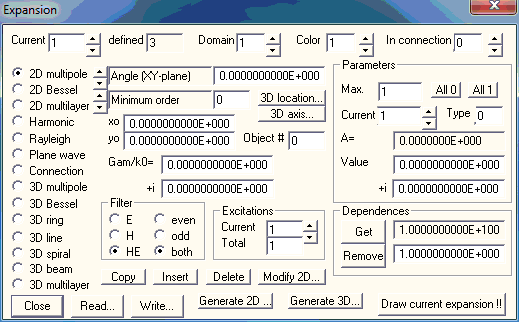
The Expansion dialog displays the MMP expansion data and allows you to edit or modify this data. An MMP expansion is defined by it’s location and orientation and by additional data defining 1) the domain number where the expansion is evaluated, 2) a connection flag when it is part of a connection, 3) the drawing color, 4) its type, 5) additional, type-dependent data such as orientation, minimum order, etc., 6) the number of linear parameters, i.e., amplitudes of each expansion (defined in the max. parameters box), 7) the values of the parameters, and an object number specified in the Object # box. Note that you can the parameter values manually when you want check what the field of an expansion looks like, but in most cases you will ask the MMP Tool to compute the parameters.
It may be difficult to estimate the number of parameters required for a certain expansion, because this depends on its location, its "Filter" properties, and the symmetry of the problem specified in the Project dialog. Instead of computing this value, you may specify a value in the Max. box that is very likely too big. For example, for a 2D multipole with maximum order 10, 100 parameters is too big. When you enter Max. 100, OpenMaXwell will first allocate memory for 100 parameters for this expansion. As soon as you press one of the buttons All 0 or All 1 or switch to another expansion, OpenMaXwell will check this and free the memory that is not required. You then may read the number of parameters in the Max. box.
By default, you specify Object # 0. But in 3D computations you may associate each expansion with a certain 3D object number. Furthermore, you may specify a negative object number for any expansion. In this case, the corresponding expansion is not used when the MMP matrix is set up, i.e., it has no direct influence on the MMP result. Such dummy expansions may be used 1) in order to influence the matching point generation, namely for a local matching point refinement near the expansion and 2) as prototypes for the automatic multipole generation.
Note that only one expansion’s data can be displayed and edited at a time. To select an expansion, specify it’s identifier in the Current box.
Note that one parameter of the current expansion can be displayed and edited at a time. To select a parameter select it’s identifier in the Current box of the Parameters group. Note that the A= box displays the absolute value of the complex amplitude, of the current parameter.
Press the 3D location… button to inspect the location and orientation of the current expansion in the 3D space. A Space dialog will pop up. This dialog contains the data of a Cartesian coordinate system in 3D space. The origin of this coordinate system is the location of the expansion, whereas the X,Y,Z directions define its orientation. Since the location in the xy plane is sufficient to define usual 2D MMP expansions, you will rarely need this information. The xo,yo boxes allow you to quickly modify the 2D location of an expansion. The orientation, i.e., the Angle (in degrees) with respect to the x axis, can be modified easily in a type-dependent data box.
For 3D expansions, the 3D location is essential. It contains the location and orientation of the expansions in 3D space. For these expansions the xo,yo boxes may contain additional data that is not necessarily the projection of the 3D origins on the xy plane. Some 3D expansions require not only the definition of the location and orientation, but also the definition of an axis. Press the 3D axis… button to open the corresponding dialog. Note that a 3D axis consists of an origin and a direction vector in 3D space.
There is no Modify button in this dialog! This means that all data are modified automatically as soon as you edit anything in the edit boxes.
Press the Delete button to delete the current expansion. Note that there is no way to recover an expansion’s data once deleted, except if you have saved the expansion data explicitly. OpenMaXwell requires at least one expansion to be present, therefore, you cannot delete the current expansion if only one expansion is defined.
Press the Insert button to insert a new default expansion into the list of expansions. OpenMaXwell will insert the expansion immediately following the current one. Modify the data of the new expansion according to your needs.
Press the Copy button to make a copy of the current expansion. OpenMaXwell will insert the copy immediately following the current expansion.
Usually, the connection flag of all expansions is zero. This flag is specified in the In connection Box. When you work with connections, each expansion can be attached to a single connection, or to several connections. If the connection flag is positive, e.g., N, the expansion is attached to the connection with the ID number N. If the flag is negative, e.g., -N, the expansion is attached to the connections with the ID numbers 1 up to N. If the flag is zero, the expansion is attached to all connections. Note that working with expansions contained in several connections requires experience, especially if the connections are nested.
Press the Read… button to read expansion data from a file. A file name dialog will allow you to select any file name to read from. Note that you can either overwrite all expansions with the expansions defined in the file, or you can insert the expansions in the file along with the existing expansions. The Insert dialog will prompt you to specify which option you prefer.
Press the Write… button to write expansion data to a file. A file name dialog will allow you to select any file name to write to.
Sometimes it is desirable to see the current expansion only in a graphics window. Clear the window and press the Draw current expansion!! button. Note that this will automatically close the dialog.
Press the Close button to close the dialog. Note that the current data in the edit boxes become effective when the dialog is closed.
For automatically generating 2D expansions along a 2D boundary, press the Generate 2D… button. The Generate expansions along 2D boundary dialog that will pop up, where you can specify how expansions are set along one or several boundaries.
For automatically generating 3D expansions for a 3D object, press the Generate 3D… button. The Generate expansions for 3D objects dialog that will pop up, where you can specify how expansions shall be set for one or several objects.
When you press the Modify 2D… button, the Modify 2D multipoles dialog that will pop up, where you can specify how sets of 2D multipole expansions shall be processed by several automatic procedures.
Multipoles that approximate the field of one and the same domain should be placed at a sufficiently big distance from each other in order to avoid numerical dependence that may lead to an ill-conditioned MMP matrix. When you press the Get dependences button, OpenMaXwell will compute a dependence factor for each expansion. These corresponding factor for the current expansion is displayed to the right hand side of the button. The factor is defined as the distance from the nearest neighbour multipole with the same domain number divided by the distance of the multipole from the boundary of the domain. If the factor is considerably less than 1, the corresponding multipole is massively dependent from another multipole. Such a multipole should be removed. To automatically remove multipoles with a dependence factor smaller than D, enter D in the box to the right hand side of the Remove depend. button and press the Remove depend. button. For 3D applications, 0.5<D<1 may be reasonable.
Note that the current implementation only checks dependencies of 3D multipoles. When you mix different types of expansions for modelling the field in a domain, there might be some dependencies that will not be detected.
OpenMaXwell can handle scattering problems with multiple excitations, i.e., when you would like to compute one and the same scattering problem with n different excitations, you may specify all excitations simultaneously in the Expansion dialog. Usually, each excitation is an expansion with a single parameter. Then, the last n expansions will play the role of the n excitations and n is defined in the Total box of the Excitations area.
An alternative is to have a single expansion with n parameters. In this case, you should initialize all parameters of the excitation to zero, using the directive SET EXPansion N PARameter 0 0 0 0. When you then run MMP, the k-th parameter of the last expansion that belongs to the k-th excitation will be set automatically equal to 1, which is desired in most cases. If you initialize all parameters of the last expansion to 1, you will get a mess because then also the parameters with numbers different from k will be equal to 1 and the corresponding parts of the expansion will contribute to the solution, although this is not desired at all.
In order to compute multiple excitation problems, you only may apply the matrix solvers CG, GUR, and GUT (specified in the MMP dialog). The simultaneous computation of multiple excitations drastically reduces the computation time. For each expansion, a different parameter set is obtained. In the Parameters section, only the parameters of the Current excitation (specified in the Excitations area) are displayed. When you compute the mismatching error or the field, only the error or field for the Current excitation will be evaluated.
Press the Close button to close the dialog without generating any 3D expansion.
Responsible for this web page: Ch. Hafner, Computational Optics Group, IEF, ETH, 8092 Zurich, Switzerland
Last update
17.02.2014