2D points 3D Objects 3D Points Boundary Cursor position Data for selected object Domain Expansion Field Field components Field formula Field tubes Function Generate expansions along 2D boundary Generate expansions for 3D objects Grid formula Grid transformation Info and movie directives Insert Integral Modify 2D expansions MMP Movie Open GL window PET basis PFD (predefined FD) Project Space, plane, arrow, or point Tools and draw Transformation data Window
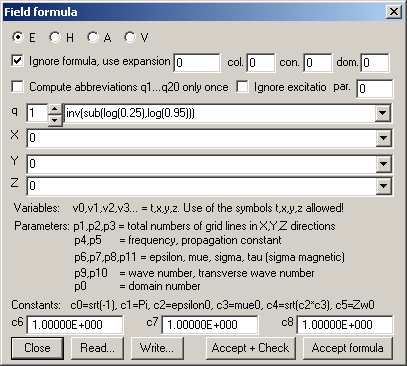
This dialog is opened when you press the Field formula... button in the Field dialog.
The OpenMaXwell formula language interpreter allows one to define the field of simple problems analytically by specifying the formula for all of components. In fact, this "analytic" field definition is rarely used, except for the initialization of the field for PFD computations, where it is usually set to zero before the PFD iterations start.
Instead of field formula, OpenMaXwell can use the MMP expansions defined in the Expansion dialog for computing the field. Check the Ignore formula box and select the expansion number in the corresponding box when you want OpenMaXwell to evaluate the field from the MMP expansions. Note that all expansions are used when you select expansion number 0.
The boxes con., col., dom., par. are associated with the Ignore formula, use expansion box. These boxes provide a filter for the MMP expansions to be used for the field computation when the Ignore formula box is checked. For example, when con. is equal to 3, col. equal to 5, dom. equal to 6, and par. equal to zero, only the expansions of connection 3 with color number 5 of domain 6 will be used for the field computation. When expansion is equal to 1, con. equal to 0, col. equal to 0, dom. equal to 0, and par. equal to 1, only the first parameter of the first expansion is used, i.e., you obtain the field of the first basis function defined in the Expansion dialog – provided that the corresponding parameter is set equal to 1.
Select 0 to turn the filter off. For example, col. equal to 0 stands for "all colors". Negative numbers stand for "all numbers up to …". For example, con. equal to -5 stands for "all connections from 1 up to 5". These filters are important for the near-to-far field transformation feature. Assume that the near field has been computed using connections 1-3 and that the expansions 3-12 define the total field, whereas the expansions 1-2 belong to the connection 4 that is used for the far field. Since the scattered near field is equal to the total near field minus the near field of the excitation (last expansion, i.e., expansion 12), you can select con. equal to –3 and use expansion equal to –11 when you want to compute the scattered near field.
It is sometimes convenient to consider the scattered field rather than the total field. Since the scattered fiel is equal to the total field minus the excitation (which is usually the last MMP expansion), you obtain it by excluding the excitation, which is done when you check the Ignore excitation box.
As there are many different field components, you cannot edit all of the corresponding formula at the same time. First you have to select the field type and the boundary type of the formula you want to edit. Since OpenMaXwell works with the four field types E, H, A, V, you can select one of these from the top line of the dialog.
As the formula for the different components of the field often contains identical parts, OpenMaXwell offers 20 abbreviations q1, q2,…, q22 that can be specified in the text area to the right of the q box. You can select the number of the abbreviation in the q box. Only one of the abbreviations is displayed at a time. When you have modified an abbreviation, don’t forget to press Check or Accept formula!
Abbreviations can be nested, i.e., the formula of an abbreviation qxx can contain another one, for example, qyy. OpenMaXwell computes q1 first, q2 afterwards, and so on. Therefore, yy<xx should hold. Otherwise, you will obtain unexpected results.
Sometimes, all abbreviations are constant and need only be computed once rather than repeatedly for each grid point and each iteration. Check the Compute abbreviations q1… only once box if this is the case. Since the computation of the abbreviations can be time-consuming, this can speed up the performance.
Since the computation of the abbreviations can be time-consuming, you should turn unused abbreviations off. To do this put an exclamation mark in front of the corresponding line.
The field formula can contain approximately 300 variables, such as v0, v1, … Instead of these variables, you can use the predefined abbreviations, for example: t:=v0:=current time, x:=v1:=x coordinate of the current grid point, etc. For details, see Formula Interpreter.
GFD formula can contain the parameters p0, p1, … p10. The meaning of these parameters is indicated on the dialog box. For details, see Formula Interpreter.
GFD formula can contain the parameters c0, c1, …c8. The meaning of the constants c0..5 is indicated on the dialog box. For details, see Formula Interpreter. The constants c6…8 are user-definable in the c6, c7, c8 boxes respectively.
When you press the Accept formula button, all formulae are stored. Don’t forget to press this button or the Accept+Check button as soon as you have modified a formula, otherwise these changes might get lost!
When you press the Accept+Check button, OpenMaXwell will make the formulae effective and it will perform some simple checks on the syntax of all formulae. When a syntax error is detected, OpenMaXwell will place an exclamation mark in front of the corresponding formula and display a warning.
Press the Read… button to read field formula data from a file. A file name dialog will allow you to select a file name to read from.
Press the Write… button to write field formula data to a file. A file name dialog will allow you to select a file name to write to.
Press the Close button to close the dialog. Note that the formulae in the dialog does not automatically become effective upon closing the dialog.
Responsible for this web page: Ch. Hafner, Computational Optics Group, IEF, ETH, 8092 Zurich, Switzerland
Last update
17.02.2014