2D points 3D Objects 3D Points Boundary Cursor position Data for selected object Domain Expansion Field Field components Field formula Field tubes Function Generate expansions along 2D boundary Generate expansions for 3D objects Grid formula Grid transformation Info and movie directives Insert Integral Modify 2D expansions MMP Movie Open GL window PET basis PFD (predefined FD) Project Space, plane, arrow, or point Tools and draw Transformation data Window
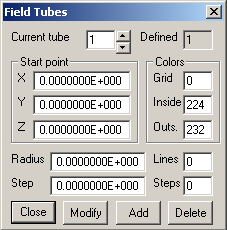
The Field Tubes dialog pops up when you click the Field Tubes… button in OpenGL window dialog.
Field tubes are bundles of field lines that can only be represented in the OpenGL Graphics window. Each tube is defined by a start point (with coordinates X, Y, Z) in 3D space, a Radius and some additional data. Note that the shape of the tube is circular in the start point, but its cross section may strongly vary. The surface of the tube is always tangential to the current derived field (see Field dialog). The length of the field tube is given by the Step size and the number of Steps along the field lines. On the circumference of the initial circle around the start point, OpenMaXwell will start drawing a certain number of Lines parallel to the derived field in the corresponding points. No field tube will be drawn when Lines or Steps is zero. For drawing the tube, the color numbers specified in the Colors section are used as follows: A grid is drawn using the Grid color the inner and outer surfaces of the tube are painted with the corresponding color numbers.
To visualize the field tubes in the OpenGL graphics window, open the OpenGL Graphics dialog by right clicking the window and select draw 3D objects. When the tubes are not visible, open the dialog again and select show/hide field tubes. When you select this once more, the tubes will be hidden again.
Press the Modify button to save the current data of the current field tube.
Press the Add button to add a new tube with the current data.
Press the Delete button to delete the current tube. Note that at least one tube must be present.
Press the Close button to close the dialog and to return to the OpenGL window dialog.
Responsible for this web page: Ch. Hafner, Computational Optics Group, IEF, ETH, 8092 Zurich, Switzerland
Last update
17.02.2014