 or
select Boundary... from the Tools menu to
open this dialog.
or
select Boundary... from the Tools menu to
open this dialog.2D points 3D Objects 3D Points Boundary Cursor position Data for selected object Domain Expansion Field Field components Field formula Field tubes Function Generate expansions along 2D boundary Generate expansions for 3D objects Grid formula Grid transformation Info and movie directives Insert Integral Modify 2D expansions MMP Movie Open GL window PET basis PFD (predefined FD) Project Space, plane, arrow, or point Tools and draw Transformation data Window
Press the boundary button or
select Boundary... from the Tools menu to
open this dialog.
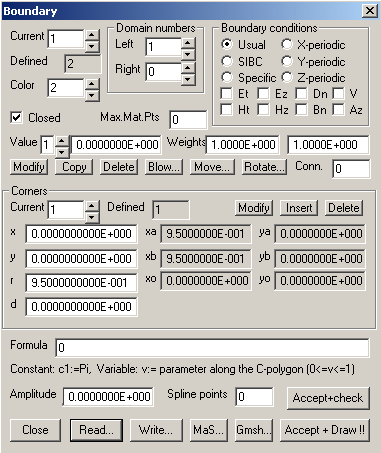
The Boundary dialog displays the current boundary data and allows you to edit or modify this data. A OpenMaXwell boundary is a C-polygon with additional data defining 1) the domain numbers to the left and to the right hand side of the C-polygon, 2) the drawing color of the C-polygon, 3) two boundary values (the meaning of which depends on the solver being applied), 4) the weight of the boundary when MMP is applied, 5) the boundary conditions to be fulfilled when MMP is applied, 6) the connection flag for boundaries that are attached to a connection, 7) a formula with an amplitude and a number of spline points.
The C-polygon defines the geometric data of a OpenMaXwell boundary. Each corner of a C-polygon is characterized by its location, i.e., Cartesian coordinates in the xy plane and by the radius of the arc that is automatically inserted in the corner. OpenMaXwell automatically computes the center xo,yo of the arc, its start point xa,ya, and its end point xb,yb.
Note that only the current boundary data is displayed. To select a boundary to be the current boundary, select its identifier in the Current box.
Note that only the data associated with a single corner of the current boundary can be displayed at a time. Therefore to select a different corner, set the corners identifier in the Current box of the Corners group.
Any changes to the boundary data is not made effective until the Modify button is pressed. Note that there are two Modify buttons in this dialog, one for all boundary data and one for the corner data of the corresponding C-polygon only.
Press the Delete button to delete the current boundary. Note that there is another Delete button in the Corners group. There is no way to recover data from a deleted boundary, except if you have saved the boundary data explicitly. OpenMaXwell requires at least one boundary to be present all the time. Therefore, you cannot delete the current boundary if only one boundary is defined.
Press the Copy button to copy the current boundary. OpenMaXwell will add an identical boundary that can be modified afterwards.
Press the Blow button to copy the current boundary. Blow is a 2D transformation that multiplies the distances of any point from the center point by a factor. As soon as you press Blow, an auxiliary dialog appears requesting you to enter this factor.
Press the Move button to move the current boundary. Move is a 2D transformation that adds a vector to any point. As soon as you press Move, an auxiliary dialog appears requesting you to specify the vector.
Press the Rotate button to rotate the current boundary. Rotate is a 2D transformation that rotates any point around the center point with a specified angle. As soon as you press Rotate, an auxiliary dialog appears, allowing you to set the rotation data.
When you modify a corner’s data within an edit box, the change is not made effective until the Modify button is pressed. Note that there are two Modify buttons in this dialog, one for the general boundary data and one for the data of the corners of the corresponding C-polygon.
Press the Insert button to copy the current corner. OpenMaXwell will add a new corner at the location specified in the boxes of the Corners group. Note that you cannot define the data in the xa, xy,… boxes. OpenMaXwell will compute this data for you. Warning: When OpenMaXwell has inserted a new corner, it will check the side lengths of the C-polygon, i.e., the distances between neighboring corners. Sides of zero length cause numeric problems because the orientation of such a side is undefined. Therefore, OpenMaXwell will immediately remove one of the corners of such a side. As a consequence, you must specify the location of the corner to be inserted before you press the Insert button. Otherwise, the current corner will be duplicated and then removed again, perhaps giving you the impression that the Insert button does not work. Note that the Insert button of the Expansion dialog works differently because it is allowable to have more than one expansion at the same location.
Press the Delete button to delete the current corner. Note that there is another Delete button outside the Corners group for deleting an entire boundary. There is no way to recover data of a deleted corner, except if you have saved the boundary data explicitly. OpenMaXwell requires at least one corner to be present. Therefore, you cannot delete the current corner if only one corner is defined.
Usually, the connection flag of all boundaries is zero. This flag is specified in the Conn. Box. When you work with connections, each boundary can be attached to a single connection or to several connections. If the connection flag is positive, e.g., N, the boundary is attached to the connection with the ID number N (see Expansion dialog). If the flag is negative, e.g., -N, the boundary is attached to the connections with the ID numbers 1 up to N. If the flag is zero, the boundary is attached to all connections.
OpenMaXwell usually creates matching points along each 2D boundary using information contained in the MMP dialog. In this case, the value selected in the Max.Mat.Pts box must be zero. If you wish to circumvent the sophisticated matching point generation abd would like to have an equidistant matching point distribution with a specific number of points, you may define this number in the Max.Mat.Pts box.
Instead of defining a boundary entirely as a C-polygon, you can use cubic splines for defining the boundaries together with a couple of points in the xy plane. To define such a
boundary, you first define a C-polygon. Then you enter a positive, non-zero number in the Spline points box. OpenMaXwell will construct the desired number of spline points along the C-polygon and it will use parametric, cubic splines to define the boundary between the spline points. If the number of spline points is set equal to one and if the number of corners of the C-polygon is bigger than one, OpenMaXwell will set a spline point in each corner of the C-polygon. Otherwise, it will use an equidistant spacing of the spline points.
As soon as you select the spline boundary representation, OpenMaXwell will evaluate the formula (defined in the Formula box) for each spline point. It will multiply the value of the formula with the value defined in the Amplitude box. If the resulting value is D and if D is different from zero, it will move the spline point away from the C-polygon a distance D. Boundary formula are especially useful when the corresponding C-polygon is a straight line. Note that you should select a sufficiently high number of spline points to obtain an accurate approximation of the boundary formula between the spline points.
You may also define 2D boundaries with a parametric representation of the form x=Formula1(v1); y=Formula2(v1), where v1 is the parameter along the boundary. This representation requires the definition of two formula strings in the Formula box. Do do this, the following form is used: "/string1/string2", for example, the formula string "/com(2,c1,v1)/mul(0.5,sim(2,c1,v2))" defines an ellipse with short axis equal to half of the long axis, long axis equal to the value defined in the Amplitude box. In this case, the two formulae are: x=cos(2*Pi*v1); y=0.5*sin(2*Pi*v1). Note that c1 is equal to Pi. When a parametric x,y-representation is used, the first point of the C-polygon defines the origin of the local coordinate system (x,y). By moving the first point, you easily may move the entire boundary! The second point of the C-polygon is used to define the orientation of the local coordinate system (x,y). The x axis is in the direction from the first point to the second point of the C-polygon. All other point of the C-polygon are ignored! Therefore, it is reasonable to use a 2 point C-polygon, i.e., a line for the parametric x,y-representation of a boundary. Note that the value defined in the Amplitude box scales the size of such a boundary. It should be positive. If a C-polygon with a single point (circle) is used, the orientation of the local x axis is equal to the orientation of the global X axis.
Press the Read… button to read boundary data from a file. A file name dialog will allow you to select a file name. Note that you can either overwrite all boundaries with the boundaries defined in the file, or you can insert the boundaries in the file adding them along with the boundaries that are already defined. The Insert dialog will allow you to specify which you prefer.
Note that you can also read simplified ASCII text files that only contain a number of polygons (without inserted arcs and without boundary information such as domain numbers, color, weights, etc.). This allows you to import polygons from other software, but you have to manually adjust the missing information after reading. Such files must have a first line with any text different from the identifier of standard *.BND files followed by the number of polygons, a list of numbers of points of each polygon, followed by the total number of corners of all polygons, followed by a list of Cartesian coordinates (x y) of all corners. Typical example:
File containing simple polygons
2 polygons
3 points for polygon 1
10 points for polygon 2
13 points total
-.25 0
-.25 5
-5.8476220e-01 5.0000000e+00
-5.8476220e-01 5.0000000e+00
-5.8954543e-01 4.4444444e+00
-5.8899342e-01 3.8888889e+00
-5.8527085e-01 3.3333333e+00
-5.8567568e-01 2.7777778e+00
-5.8312317e-01 2.2222222e+00
-5.7165590e-01 1.6666667e+00
-5.4349128e-01 1.1111111e+00
-5.2798826e-01 5.5555556e-01
-5.4674799e-01 0.0000000e+00
When reading such a file, each boundary will obtain default values and the number of spline points will be set equal to 1, which means that all of the corner points will be interpreted as spline points. In order to obtain the polygons with sharp corners instead, set the number of spline points manually to 1.
Press the Write… button to write boundary data to a file. A file name dialog will allow you to select a file name to save the data to. You may also write matching point data on a file to be used by some Method of Auxiliary Sources (MAS) codes by pressing the MaS... button.
You may export boundary data also to the finite element mesher GMSH - by pressing the Press the GMS… button. The Conversion boundary to GMSH geometry dialog will pop up. This dialog allows you to specify which boundaries shall be used for creating the *.GEO file that may then be read by GMSH. Note that the size of the elements created by GMS is steered by the characteristic length d, which may be specified for each corner in the Boundary dialog. Also spline data may be exported to GMSH but it seems that the characteristic length d for spline data is not handled by GMSH as one would expect. The *.GEO file name may not be specified. It is the same as the project file name (with different extension).
Sometimes it is desirable to see the current boundary only in a graphics window. Clear the window and press the Draw current boundary!! button. Note that this will automatically close the dialog.
Press the Close button to close the dialog. Note that any changes made to the data will be lost unless the changes were accepted by pressing the Modify button.
2D boundaries may not only be used for 2D MMP computations, but also for near-to-far field transformations (see below), for integrating along a 2D line and for creating 3D objects. When you wish to integrate a boundary, this may be a "fictitious" one, i.e., a boundary that is not needed for the 2D MMP computation. Similarly you might want to create a "fictitious" 3D object that is not needed for 3D MMP computations. For obtaining fictitious or dummy boundaries, you specify negative domain numbers in the Left and Right boxes. Such dummy boundaries may also be used for non-MMP solvers, for example FDTD for defining boundaries of specific materials, e.g., PEC and PMC.
The near-to-far field transformation feature requires the definition of a special boundary, where the near field is linked with the far field. Assume that the near field is defined by
all boundaries that have the connection flag 1 and that the far field shall be computed in domain 1. Then, you specify a boundary for the near-to-far field transformation that has the left domain number 1 and the right domain number –4 with the connection flag 2. Moreover, you specify a multipole with domain number 1 and connection flag 2 for modeling the far field and a dummy plane wave excitation with amplitude 0 and connection flag 2 in the Expansion dialog. The connection 2 then describes the near-to-far field transformation. Right domain number –4 indicates that the field defined in the Field formula dialog shall be computed along this boundary and shall be matched with the field to the left hand side of this boundary. Make sure that the field is defined in the Field formula dialog in such a way that only the scattered field of connection 1 is obtained.
Responsible for this web page: Ch. Hafner, Computational Optics Group, IEF, ETH, 8092 Zurich, Switzerland
Last update
31.03.2016