2D points 3D Objects 3D Points Boundary Cursor position Data for selected object Domain Expansion Field Field components Field formula Field tubes Function Generate expansions along 2D boundary Generate expansions for 3D objects Grid formula Grid transformation Info and movie directives Insert Integral Modify 2D expansions MMP Movie Open GL window PET basis PFD (predefined FD) Project Space, plane, arrow, or point Tools and draw Transformation data Window
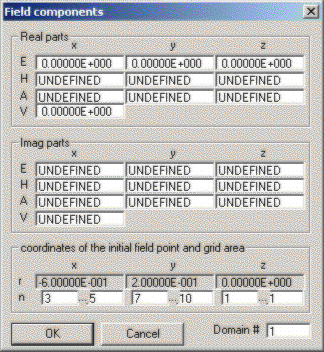
This dialog pops up when you have selected Field from the Modify menu and click or drag with the left mouse button in the Graphic window.
All of the original fields data for the grid point nearest the cursor position is displayed in the corresponding boxes of the Real parts and Imag parts groups. Moreover, the location of the corresponding grid point and the grid line numbers are displayed in the coordinates group and the domain number is displayed in the Domain box.
Instead of clicking on a grid point, you can also select a rectangular area in a graphic window. Press the first mouse button at the first corner, move the mouse, and release the button at the corner diagonal to the first corner. Only the field data of the first corner of the selected rectangle will be displayed, but in the n boxes of the coordinates group, you will see the grid line numbers of both corners.
You can edit all field values and domain numbers of the original field in the corresponding edit boxes. Note that you may select a 3D area of the grid when the lower and upper limits of the grid line numbers in the n boxes of the coordinates group are unequal. OpenMaXwell will set equal field values and domain numbers for all grid points in the specified area as soon as you press the OK button.
Press the Cancel button to close the dialog. Note that any modifications made to the data will be lost.
Press the OK button when you have modified some data and want to accept the changes. Note that the dialog will close.
Responsible for this web page: Ch. Hafner, Computational Optics Group, IEF, ETH, 8092 Zurich, Switzerland
Last update
17.02.2014